01
Pair Your Card
Open Hidely and follow the setup instructions. Tap Pair My Key, then hold your Card near the top of your iPhone until pairing is confirmed.
hidely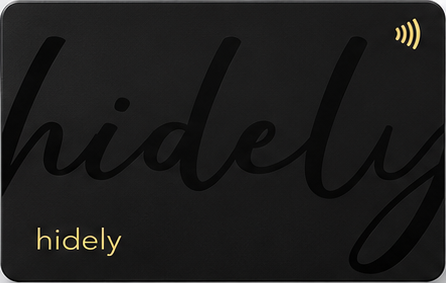
Pair a Physical Key
Scan your Card first.
HIDELY CARD + TAG KIT
Set Up Your Card & Tag
Pair both keys with your vault: your Card for quick access, your Tag for in-app verification.
Download on the App Store Already have the app? Start setup ↓PAIR YOUR KEYS
Download Hidely and create your Vault Passcode, then follow the in-app steps to pair your Card and Tag.
Open Hidely and follow the setup instructions. Tap Pair My Key, then hold your Card near the top of your iPhone until pairing is confirmed.
Scan your Card first.
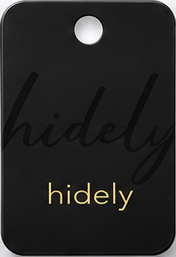
Tap Add Backup Key, then hold your Tag near the top of your iPhone. Wait for the pairing confirmation.
Next: scan your Tag.Already using Hidely? Go to Settings → Physical Keys to pair your keys.
Scan one key at a time. Keep your Card and Tag in separate places so you have another way in if one goes missing.
EVERYDAY ACCESS
Use Card for fast everyday access.
Use Tag for more discreet private access.
Your Vault Code and Vault Passcode are the same code.
Hold it still near the top of your iPhone for a moment. Scan one key at a time. If needed, remove your phone case and try again.
That’s expected. Your Tag is scanned inside the app when prompted. Use your Card for the tap-to-open shortcut.
Yes. Go to Settings → Physical Keys to add your Card and Tag anytime.
Use your other paired key to access your vault, then remove the missing key in Settings → Physical Keys. If you can’t access either key, contact lostkey@hidely.app for help.
Your Card & Tag are ready. Let’s get you set up.